What Is a Help Request?
A Help Request is a request-for-assistance submitted by an agent. It:
-
Routes to supervisors assigned to a specific Help Group (Queue)
-
Appears as an email-type inbound contact
-
Opens a live IM conversation between agent and supervisor
-
Is logged as its own record (separate from calls or other inbound contacts)
Important: Help Requests are not directly associated with a call or other inbound interaction record. They are logged independently as an email-type interaction.
Admin Guide: Setting Up Help Requests
Help Requests are configured at the Inbound Queue level, using the Email channel.
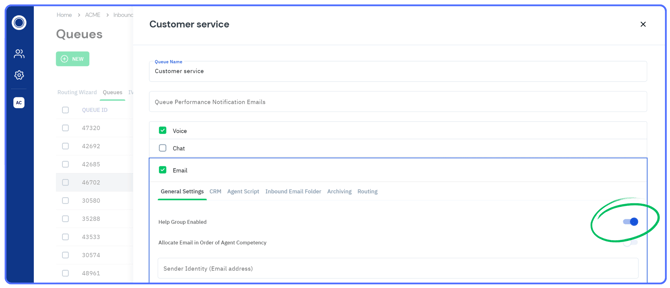
Step 1: Enable Help Requests on a Queue
-
Navigate to Inbound Queues
-
Open the desired queue
-
Select the Email channel tab
-
Enable the toggle for Help Group Enabled for that queue
This designates the queue as a Help Group agents can submit requests to.
Step 2: Assign Supervisors to the Help Group
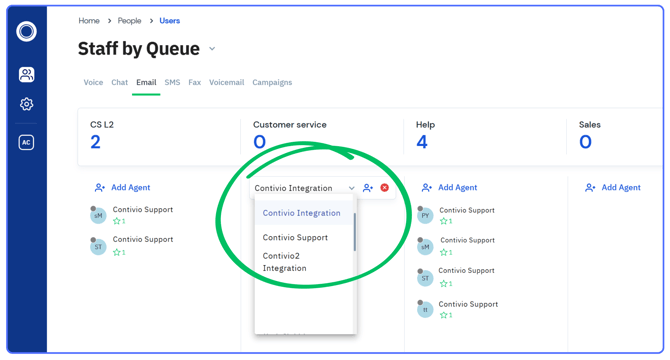
Supervisors must be assigned to the queue in order to receive Help Requests.
-
Navigate to Staff by Queue
-
Locate the Help Group / Queue
-
Assign supervisors or managers who should receive Help Requests
Step 3: Understand How Help Requests Are Routed
-
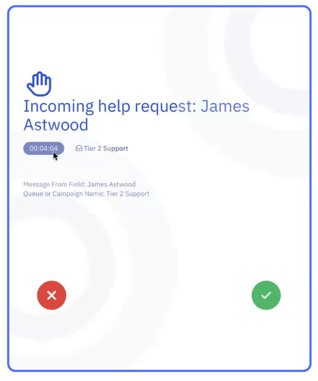
Help Requests are offered to supervisors just like other inbound contacts
-
Supervisors receive them as email-type offers
-
Availability and queue assignment rules apply
Supervisor Guide: Responding to Help Requests
Accepting a Help Request
-
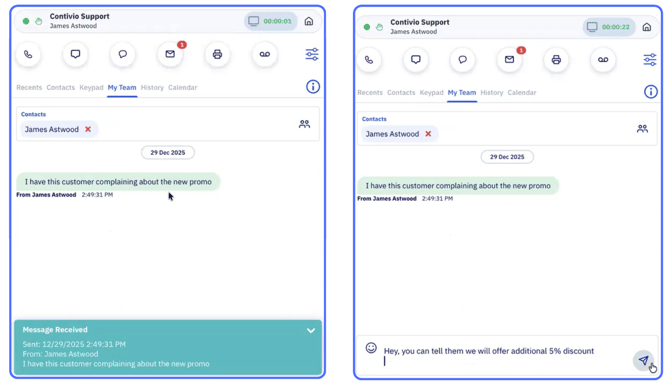
When a supervisor clicks Accept on a Help Request:
-
A live IM session opens with the agent
-
The agent’s submitted question or note appears in the conversation
-
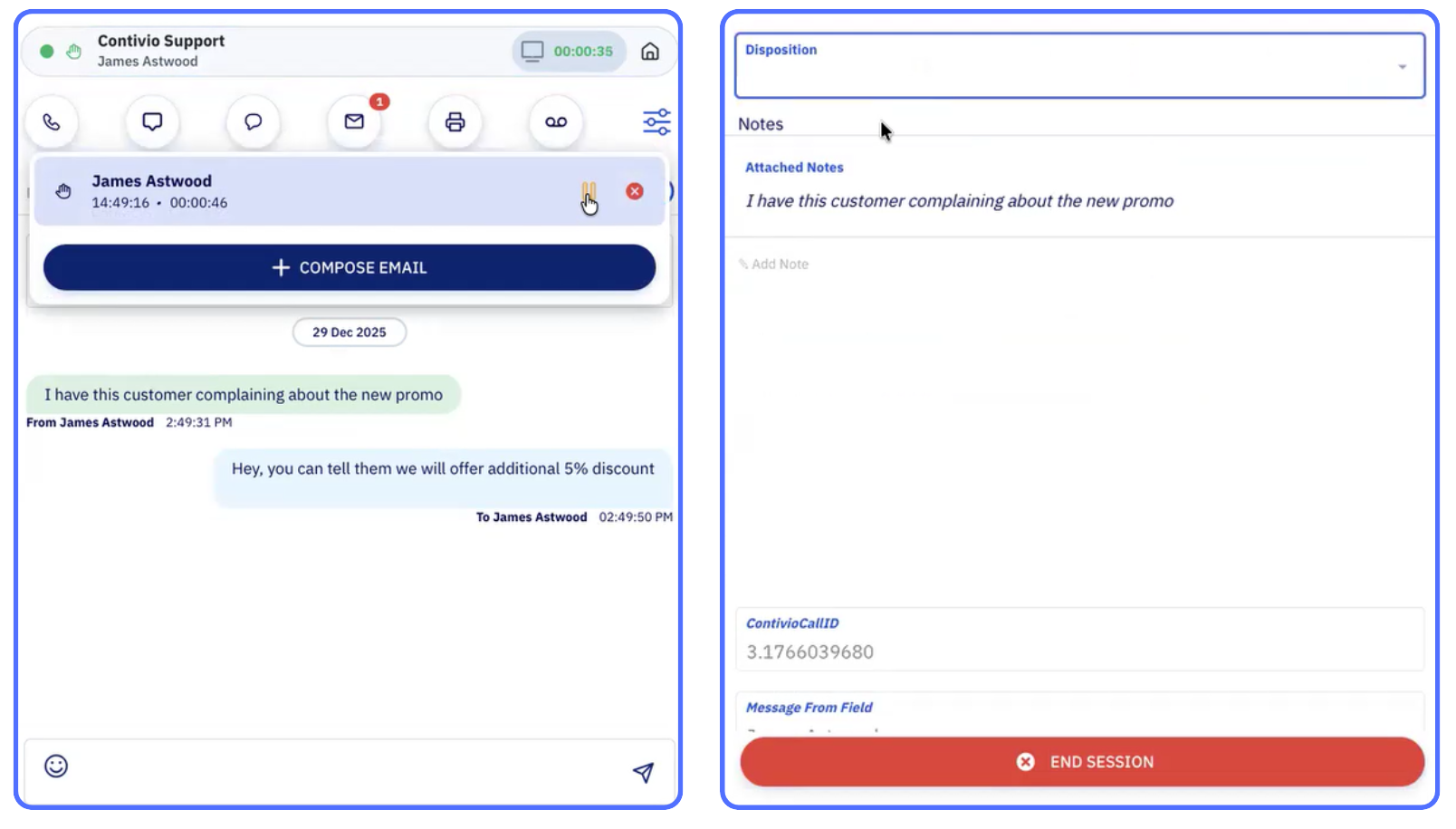
Managing and Ending the Help Request Session
Supervisors can continue the IM conversation with the agent to provide guidance, clarification, or next steps as needed.
During or after the conversation, supervisors can:
-
Dismiss the IM from the dropdown under the channel icon, or
-
Open the Call / Interaction Information screen to optionally add a disposition and formally close the session
To fully end the Help Request:
-
Open the Call / Interaction Information screen
-
Add a disposition (optional)
-
Click End Session
Screenshot:
Interaction details screen showing disposition selection and the “End Session” option.
Agent Guide: Submitting a Help Request
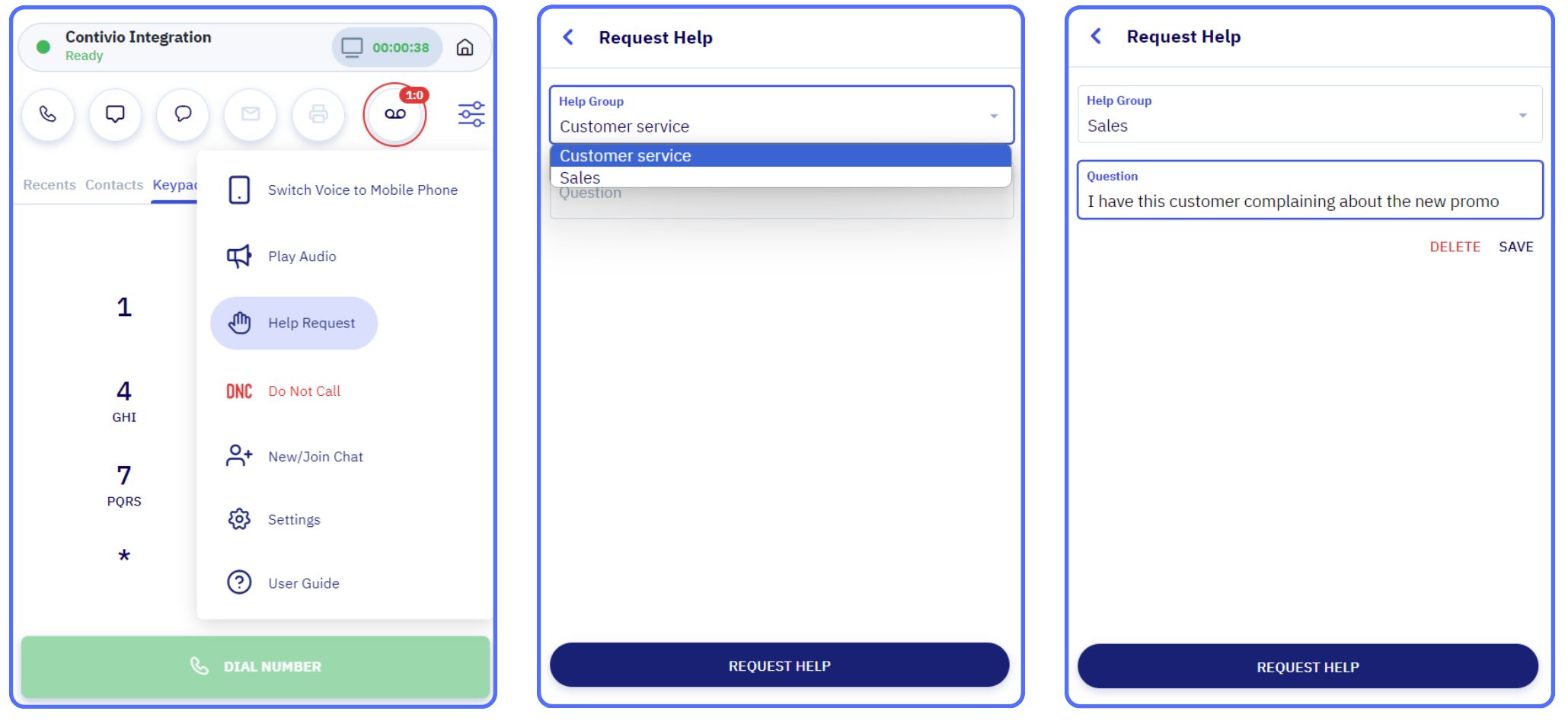
Selecting the Help Group
When submitting a Help Request, agents:
-
Select which Help Group / Queue to route the request to
-
Enter their question or help note
This allows agents to direct requests to the correct supervisory team.
When Agents Can Submit Help Requests
Agents can submit Help Requests:
-
While actively on a call
-
While handling another inbound contact
-
Outside of any active interaction
Help Requests do not interrupt the agent’s current workflow.
Best Practices
-
Admins:
Create clear Help Groups so agents know where to route requests. -
Agents:
Include enough detail in the request note to help supervisors respond quickly. -
Supervisors:
Treat Help Requests like live inbound offers to keep response times short.