---
title: Using Polycom IP Phones with Contivio (Article and Video)
description: Contivio works with most IP Phones that support SIP (Session Initiation Protocol), the defacto standard protocol for VoIP.
---
[Skip to content](https://go.contivio.com/support/using-polycom-ip-phones-with-contivio#main-content)
English
Show submenu for translations

Open main navigation
Close main navigation
- English
Show submenu for translations
-
How can we help you?
- There are no suggestions because the search field is empty.
1. [Help Guide](https://go.contivio.com/support?hsLang=en)
2. [Agent User Guide(OLD)](https://go.contivio.com/support/agent-user-guideold?hsLang=en)
3. [Getting Started](https://go.contivio.com/support/agent-user-guideold?hsLang=en#getting-started)
# Using Polycom IP Phones with Contivio (Article and Video)
Contivio works with most IP Phones that support SIP (Session Initiation Protocol), the defacto standard protocol for VoIP. If you're using an IP Phone, you will need to log into the Contivio app using the "External VoIP" option.
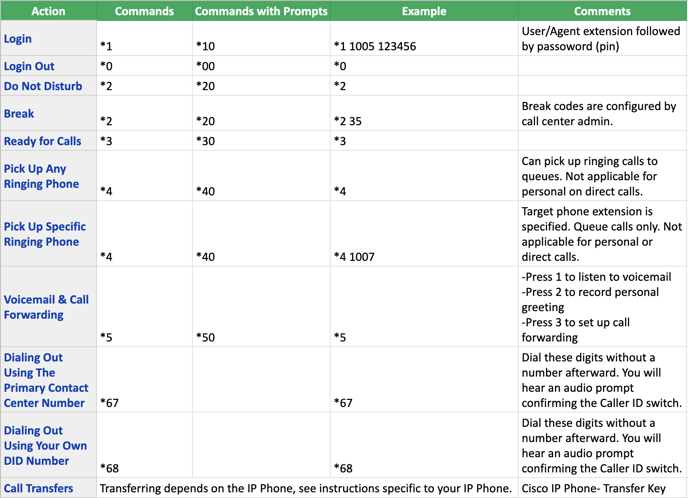
The Contivio app is paired with the IP phone using a system dial command sequence. Once you have dialed **\*1 + your Extension + numeric PIN** (password), Contivio will prompt a successful login announcement.
#### **Logging in**
**To log in follow these steps**
1. Press **\* 1** then enter your personal extension followed by your numeric password
2. Press **'Call'** located on the dashboard of your IP Phone.
3. Next, you will hear an audible prompt confirming you are logged into Contivio and ready to receive calls.
**Tip:** If you are assigned to queues, and there are calls waiting in the queue, you should be prepared to answer the call immediately. If you're not prepared, you will need to make sure to change your status to "Busy" upon logging in.
#### Logging out
**To log out follow these steps**
1. Press **\* 0** then press **'Call'**
2. Next, you will hear an audible prompt confirming you are logged out of Contivio.
**Tip:** If you hear a busy tone after logging in or out, hang up the phone or press 'End Call'
#### **Change your Busy/Break Status**
**To change your status follow these steps**
1. To change to a 'Busy' status and no longer receive inbound media, press **\* 2**
2. Next, you will hear an audible prompt confirming you have changed your status.
3. Press **\* 3** to return to a ready status.
4. To go into a specific break status (i.e., Lunch Break) press **\* 2 followed by the break code #**.
**Note:** Contact your call center administrator for your organization's unique break codes.
#### Call Handling
**To Place and receive calls follow these steps**
1. Dial the phone number and press **'Call'** -OR- pick up the phone, wait for the dial tone, then dial the number.
2. To receive an inbound call either pick up the phone or press **'Answer'** located in the dashboard.
#### **Place a call on Hold**
**To place a call on hold follow these steps**
1. While on a call press **'Hold'** located in the dashboard.
2. Press **'Resume'** to take the call off hold.
#### Transfers
**To transfer a call follow these steps**
#### **Cold Transfer**
1. To perform a cold transfer press **'Transfer**' located in the dashboard
2. Type the internal extension
3. To complete the transfer press **'Transfer'** one more time
#### Warm Transfer
1. To perform a warm transfer press **'Transfer**' located in the dashboard
2. Type in the desired extension, wait for the call to dial out
3. Once your colleague answers, introduce the caller on the other line and press **'Transfer'**
#### **Conference Call**
**To perform a conference call follow these steps**
1. Press **'Conference'** located in the dashboard
2. Type in the desired extension, and wait for the extension to dial out (this will place the initial call on hold)
3. Press **'Conference'** to join the calls
**See the chart below for detailed usage and access to system features**
- [Agent User Guide](https://go.contivio.com/support/agent-user-guide?hsLang=en#main-content)
- [Getting Started](https://go.contivio.com/support/agent-user-guide?hsLang=en#getting-started)
- [App Navigation](https://go.contivio.com/support/agent-user-guide?hsLang=en#app-navigation)
- [App Basics](https://go.contivio.com/support/agent-user-guide?hsLang=en#app-basics)
- [Agent Workflows](https://go.contivio.com/support/agent-user-guide?hsLang=en#agent-workflows)
- [Supervisor Workflows](https://go.contivio.com/support/agent-user-guide?hsLang=en#supervisor-workflows)
- [NetSuite Integration](https://go.contivio.com/support/agent-user-guide?hsLang=en#netsuite-integration)
- [Glossary](https://go.contivio.com/support/agent-user-guide?hsLang=en#glossary)
- [Agent User Guide(OLD)](https://go.contivio.com/support/agent-user-guideold?hsLang=en#main-content)
- [Additional Resources](https://go.contivio.com/support/agent-user-guideold?hsLang=en#additional-resources)
- [IP Phone Users](https://go.contivio.com/support/agent-user-guideold?hsLang=en#ip-phone-users)
- [Getting Started](https://go.contivio.com/support/agent-user-guideold?hsLang=en#getting-started)
- [Inbound and Outbound Call Handling](https://go.contivio.com/support/agent-user-guideold?hsLang=en#inbound-and-outbound-call-handling)
- [CRM Integrations](https://go.contivio.com/support/agent-user-guideold?hsLang=en#crm-integrations)
- [Desktop App Navigation](https://go.contivio.com/support/agent-user-guideold?hsLang=en#desktop-app-navigation)
- [Chat](https://go.contivio.com/support/agent-user-guideold?hsLang=en#chat)
- [SMS/Text](https://go.contivio.com/support/agent-user-guideold?hsLang=en#sms-text)
- [Instant Message](https://go.contivio.com/support/agent-user-guideold?hsLang=en#instant-message)
- [Fax](https://go.contivio.com/support/agent-user-guideold?hsLang=en#fax)
- [Email](https://go.contivio.com/support/agent-user-guideold?hsLang=en#email)
- [Admin Portal Help](https://go.contivio.com/support/admin-portal-help?hsLang=en#main-content)
- [Help Guide Overview](https://go.contivio.com/support/admin-portal-help?hsLang=en#help-guide-overview)
- [Portal Access](https://go.contivio.com/support/admin-portal-help?hsLang=en#portal-access)
- [People Management](https://go.contivio.com/support/admin-portal-help?hsLang=en#people-management)
- [Global Settings](https://go.contivio.com/support/admin-portal-help?hsLang=en#global-settings)
- [Contact Center Settings](https://go.contivio.com/support/admin-portal-help?hsLang=en#contact-center-settings)
- [Configuring Live Chat](https://go.contivio.com/support/admin-portal-help?hsLang=en#configuring-live-chat)
- [Analytics & Reports](https://go.contivio.com/support/admin-portal-help?hsLang=en#analytics-reports)
- [General Information](https://go.contivio.com/support/admin-portal-help?hsLang=en#general-information)
- [Contivio AI](https://go.contivio.com/support/admin-portal-help?hsLang=en#contivio-ai)
- [Dashboards and Reports](https://go.contivio.com/support/dashboards-and-reports?hsLang=en#main-content)
- [Building Reports](https://go.contivio.com/support/dashboards-and-reports?hsLang=en#building-reports)
- [Contact Search](https://go.contivio.com/support/dashboards-and-reports?hsLang=en#contact-search)
- [Supervisor Dashboard](https://go.contivio.com/support/dashboards-and-reports?hsLang=en#supervisor-dashboard)
- [Integration](https://go.contivio.com/support/integration?hsLang=en)
- [Internal Processes](https://go.contivio.com/support/internal-processes?hsLang=en)
- [Mobile App](https://go.contivio.com/support/mobile-app?hsLang=en#main-content)
- [Version Updates and Release Notes](https://go.contivio.com/support/mobile-app?hsLang=en#version-updates-and-release-notes)
- [Setting up the Contivio Mobile App](https://go.contivio.com/support/mobile-app?hsLang=en#setting-up-the-contivio-mobile-app)
- [Basic Mobile App Functionality](https://go.contivio.com/support/mobile-app?hsLang=en#basic-mobile-app-functionality)
- [IN PROGRESS](https://go.contivio.com/support/in-progress?hsLang=en)
[](https://www.contivio.com)
Copyright © 2026, Contivio